
Dragon's Dogma 2 save-file location, backup, and restore guide
Locate the Steam userdata folder for App ID 2054970, make a complete cold backup and restore it without racing Steam Cloud.
Applies to: Steam on Windows and Proton path pattern · console saves and current slot-to-file mapping excluded
Quick answer
On Windows Steam, open `<Steam-folder>\userdata\<your-Steam-user-ID>\2054970\remote\`. Exit the game and Steam before copying the entire `remote` folder to a dated backup outside `userdata`. For restore, keep Steam closed, preserve the current folder separately, replace the contents from one known backup, then start Steam and resolve any Cloud conflict by timestamp and the copy you intend to keep.
File-safety rule: close Dragon’s Dogma 2 and fully exit Steam before copying or replacing saves. Back up the entire remote folder. The September 2026 update added three in-game slots, but the reviewed sources do not map every slot to a stable filename.
Save locations
| Platform | Reported path pattern |
|---|---|
| Steam on Windows | <Steam-folder>\userdata\<your-Steam-user-ID>\2054970\remote\ |
| Steam Play / Proton | <SteamLibrary>/steamapps/compatdata/2054970/pfx/, with Cloud data also potentially under the Steam userdata tree |
PCGamingWiki · Checked October 15, 2026. App ID 2054970 is also visible in the official Steam product URL.
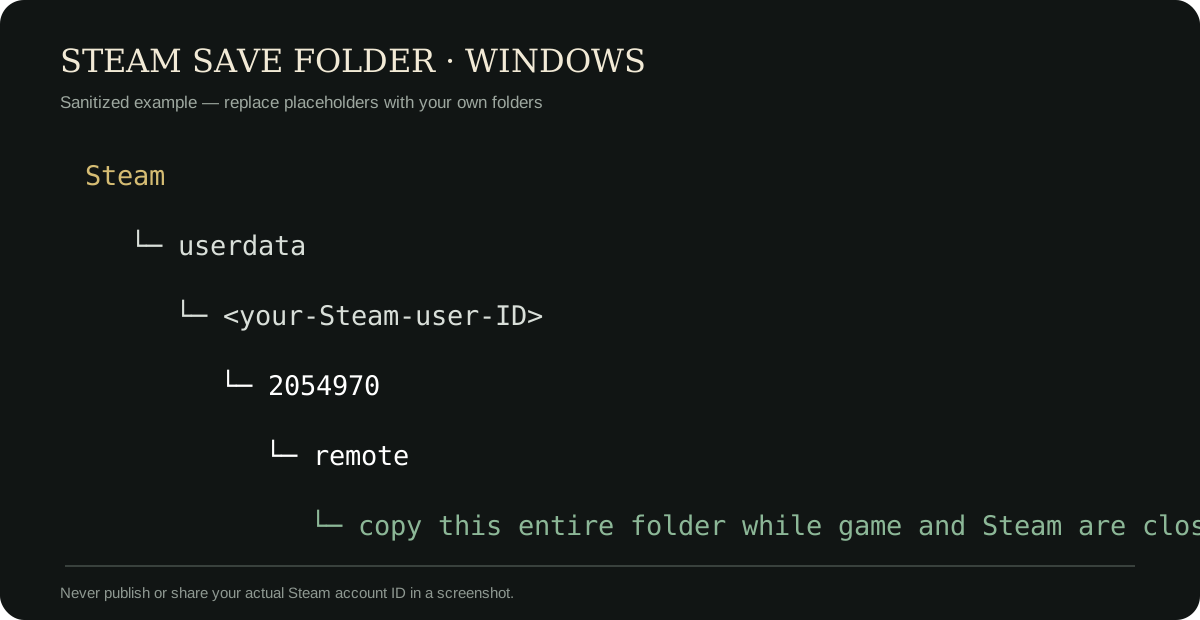
Find the correct account folder
- In Steam, open Settings → Storage to identify the Steam installation/library location.
- Open its
userdatafolder. - If several numeric account folders exist, compare their modification times after making a normal in-game save, without sharing the numbers.
- Open the matching
2054970\remotefolder.
Do not use someone else’s Steam ID from a screenshot or guide; the numeric folder is account-specific.
Make a cold, complete backup
- Save in-game, return to the title screen and quit.
- Exit Steam from its menu and confirm it is no longer synchronizing.
- Copy the entire
remotefolder to a dated location outsideuserdata, such asDocuments\DD2 backups\2026-10-15-before-mods\. - Open the copy and confirm files exist; do not move the original.
Restore one known backup
- Keep the game and Steam closed.
- Copy the current live
remotefolder to a separate “before-restore” backup. - Replace the live folder’s contents with one complete dated backup.
- Start Steam, examine any Cloud-conflict timestamps and choose the restored local state only when that is the copy you intend to keep.
- Launch the game and verify the slot, location and playtime before making new progress.
Avoid a Steam Cloud race
The official Steam page marks the game as supporting Steam Cloud. Copying while the game or client writes can produce a mixed snapshot; restoring while Cloud sync is active can upload or replace the wrong state. Preserve both sides before resolving a conflict and use timestamps as evidence, not guesswork.
What this guide does not claim
- No console filesystem path: console saves are managed by the platform UI.
- No stable file-to-slot mapping for the current three-slot system.
- No save editor, downloaded save or cross-account transplant procedure.
- No guarantee that a backup from another game version or mod set will load.
Sources
- PCGamingWiki — Dragon’s Dogma 2: Steam and Proton path patterns; Checked October 15, 2026. Community-maintained technical source.
- Steam — Dragon’s Dogma 2: App ID and Steam Cloud feature listing; Checked October 15, 2026. Official storefront.
Recheck after changes to save-slot storage, Cloud behavior or App ID.
PCGamingWiki supplies the Steam and Proton path patterns. Steam identifies App ID 2054970 and Steam Cloud support. Multi-slot filenames are intentionally not guessed.
Not independently play-tested. This is not a claim that every platform or game version was tested. Source review: Oct 15, 2026.
More Dragon's Dogma 2 Guides
 Dragon's Dogma 2
Dragon's Dogma 2 PC performance, FSR 3, and Frame Generation guide
Use the current native frame-generation options and diagnose CPU, GPU, VRAM and frame-pacing symptoms in the right order.
 Dragon's Dogma 2
How to turn off HDR in Dragon's Dogma 2
Disable the active HDR layer in the game, Windows 11 or the display and correct washed-out, dark or overexposed output.
 Dragon's Dogma 2
Dragon's Dogma 2: Dark Arisen guide — content, access, and current version
Choose the right edition, reach Norgan, understand Lost Rites and relic appraisal, and separate the paid expansion from Hard Mode and free updates.
 Dragon's Dogma 2
Dragon's Dogma 2 Prey for the Pack — find and save Rodge
Start Morris’s timed quest in Checkpoint Rest Town, follow the Moonglow clues, find Rodge inside Putrid Cave and bring him home for the successful reward.
 Dragon's Dogma 2
Dragon's Dogma 2 editions and Dark Arisen buying guide
Compare the base game, legacy Deluxe Edition, standalone Dark Arisen expansion and current bundle without paying twice for content.
 Dragon's Dogma 2
How to start Dragon's Dogma 2: Dark Arisen
Check the required story progress, Brant dialogue, nighttime location, recommended levels and Unmoored World limitation before starting.