Enshrouded 1.0 Saves: Compatibility, Backup Locations, and Rollback
Keep an Early Access world for 1.0, find local and Steam Cloud saves, back up before conversion, and understand rolling world copies.
Applies to: Steam PC client and Windows dedicated-server world saves · Enshrouded 1.0
Quick answer
Early Access saves can be used in Enshrouded 1.0, and Keen says they are converted to a new format. Back up first: local saves are under %USERPROFILE%/Saved Games/enshrouded, Steam Cloud copies use App ID 1203620, and a dedicated server uses its configured saveDirectory—./savegame by default. Keen encourages a fresh start because the world and opening hours changed, but starting over is a recommendation, not a compatibility requirement.
Early Access saves work in 1.0
Keen’s launch FAQ says existing Early Access saves can be used after the 1.0 release. The save format is converted to a newer format. Keen also encourages starting over because the world and first hours changed substantially, but that recommendation does not mean an old save is rejected.
Back up before the first 1.0 load. Conversion, a cloud conflict, or a corrupted file is much easier to diagnose when the untouched pre-conversion folder still exists.
Find the correct save
| Save type | Official location or route | Contains |
|---|---|---|
| Local PC saves | %USERPROFILE%/Saved Games/enshrouded | Local client save data when Steam Cloud is disabled. |
| Steam Cloud web storage | Steam Remote Storage for App ID 1203620 | Cloud files tied to the signed-in Steam account. |
| Steam’s local cloud copy | Steam/userdata/[Steam ID]/1203620/remote | The local files Steam synchronizes for Enshrouded. |
| Dedicated-server world | The folder in saveDirectory; default ./savegame | World progression. Keen says character progression remains on clients. |
Make a backup that can survive an update
- Exit Enshrouded. For a dedicated server, stop its process and wait for shutdown to finish.
- Identify whether the active data is local, Steam Cloud, or a server world. Do not assume all three are identical.
- Copy the complete relevant folder to a dated location outside the game and server installation folders.
- Keep file names and the accompanying index and
_infometadata files together. - Only after verifying the copy exists, launch 1.0 or change cloud settings.
Use rolling world copies carefully
Keen documents ten numbered rolling copies for each world. A new copy is created about every ten minutes or when the game shuts down, and the oldest copy is overwritten. The associated -index file identifies the active copy with its latest value.
Before editing that index to roll back, copy every save file elsewhere. Choose the candidate by modified time and preserve the original index. A rolling copy can help with recent world damage, but it is not a substitute for an offline backup because the rotation eventually overwrites older states.
Move local saves to Steam Cloud without guessing
Keen’s documented process starts with Steam Cloud turned off: back up and clear the App ID 1203620 remote folder, copy the local Saved Games/enshrouded files into it, turn Steam Cloud on, then use the local files when Steam reports a conflict. Read the current support article before doing this—the direction of the copy matters.
Never resolve a cloud conflict by choosing the newest timestamp blindly. Compare the machine, world, and last known play session first, and keep both sides until the desired world loads correctly.
Missing character after 1.0 migration
Hotfix 1.0.0.2 stopped one corrupted-character case from crashing during conversion but could leave the affected character out of the list. Hotfix 1.0.0.3 then improved migration for invalid entries in additional backpack slots; Keen says those characters should now migrate, without the items that caused the process to stop. Update through 1.0.0.3 or later, preserve the affected files before retrying, and attach the relevant before-and-after saves to an official bug report if the character is still missing.
Official sources
- Keen Games launch FAQ — compatibility, conversion, and fresh-start recommendation.
- Save Game Management — locations, rolling copies, rollback, and cloud migration.
- Hotfix 1.0.0.2 — corrupted-character migration behavior.
- Hotfix 1.0.0.3 — follow-up migration handling for invalid backpack-slot entries.
- Reporting Bugs — logs and save files requested by support.
Reviewed October 23, 2026. Always preserve an untouched copy before rollback or cloud migration.
Checked against the sources linked on the page. Dynamic data, platform plans, patch status, and game mechanics can change; no hands-on testing is claimed.
Not independently play-tested. This is not a claim that every platform or game version was tested. Source review: Oct 23, 2026.
More Enshrouded Guides
 Enshrouded
Enshrouded Platforms and Release Status: PC, PS5, and Xbox
See which Enshrouded versions are available now, what each store confirms, and how to interpret the current Xbox target.
 Enshrouded
Enshrouded Crossplay and Cross-Save: Can PC and PS5 Play Together?
Separate the current crossplay answer from save transfer, platform player limits, and Adventure Sharing across platforms.
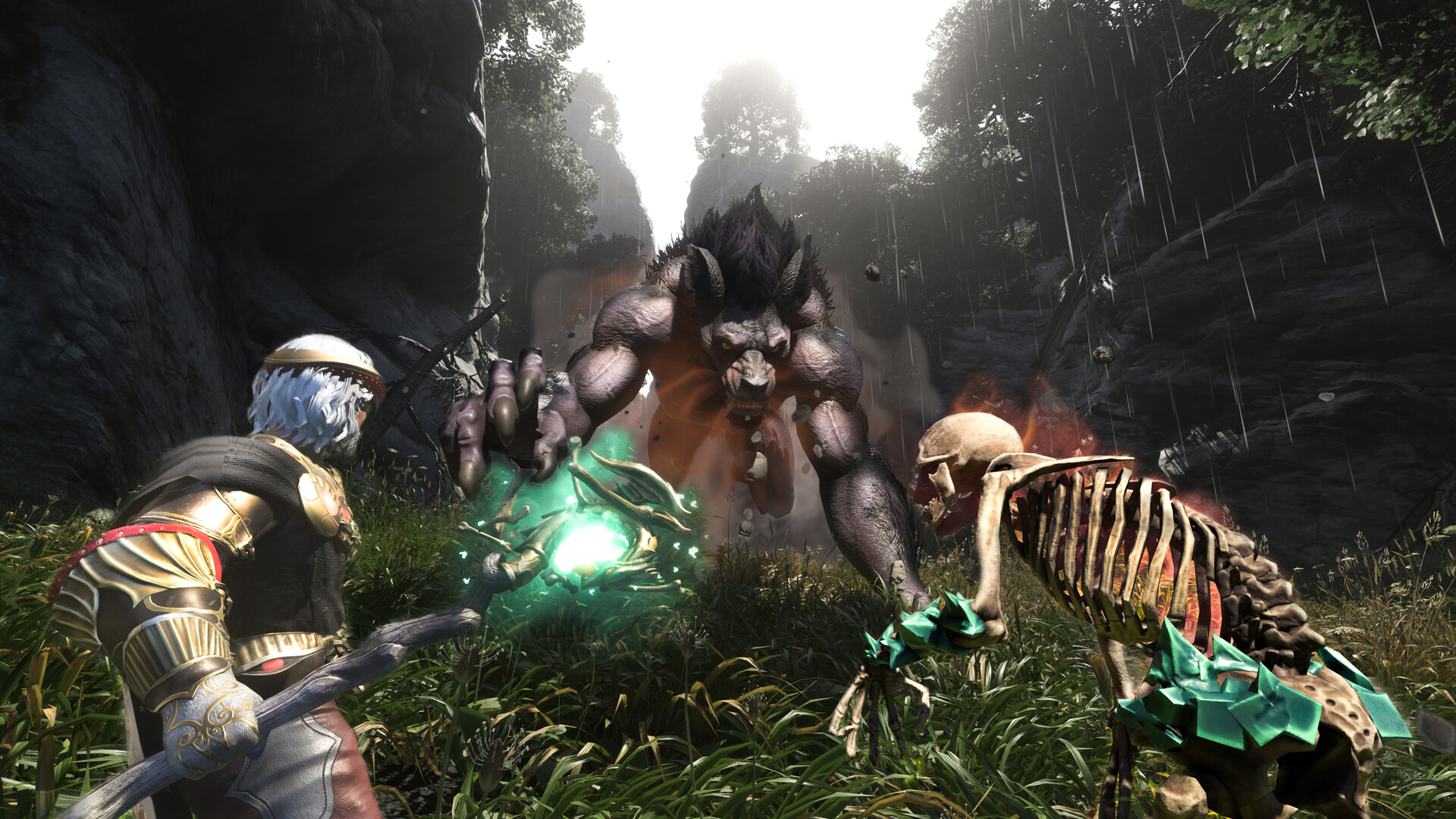 Enshrouded
Enshrouded Player Count: Live Steam Players and Peak Explained
Read the live SteamDB chart correctly, distinguish concurrent players from owners, and put the launch and all-time peaks in context.
 Enshrouded
Enshrouded Dedicated Server Setup: Install, Configure, and Connect
Set up the official Windows dedicated server, configure slots and user groups, open the correct port, verify startup, and protect the world save.
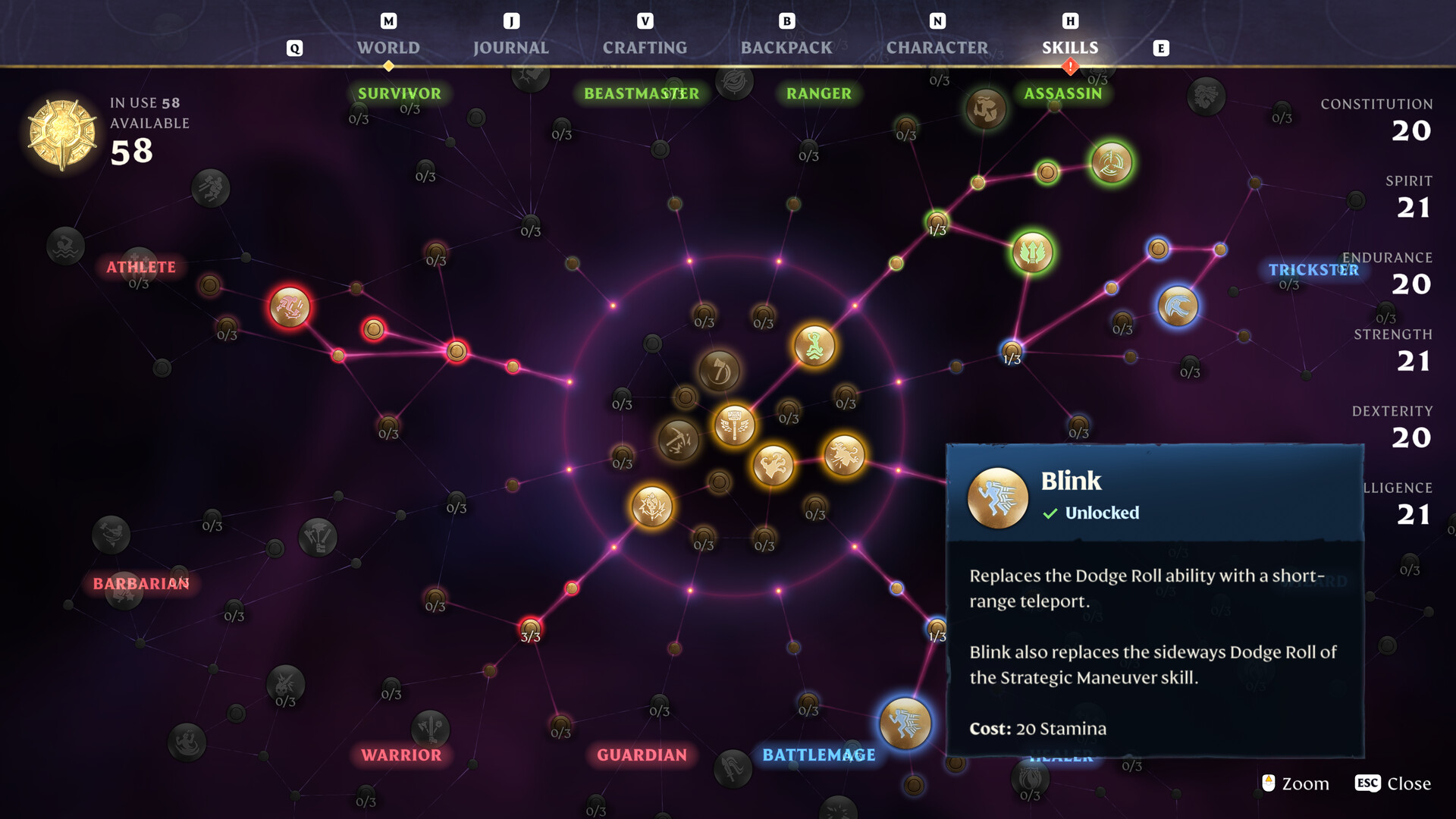 Enshrouded
Enshrouded 1.0 Skill Tree and Max Level: Build Planning Basics
Use the current level caps, understand the 1.0 skill-tree reset, and plan around weapon roles without relying on outdated Early Access builds.
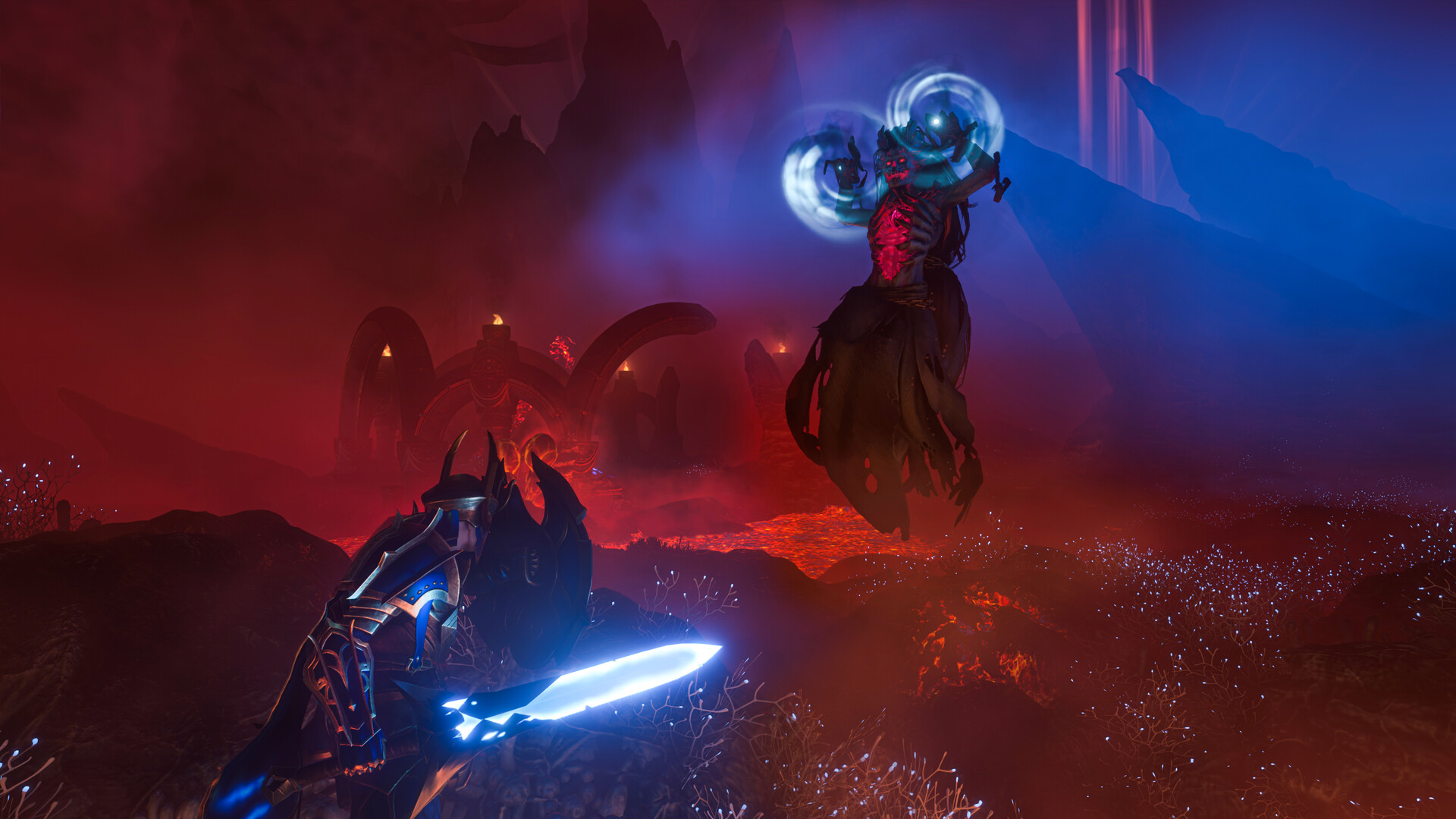 Enshrouded
Enshrouded Crashes or Runs Poorly: A Safe PC Troubleshooting Order
Check the current build and hardware first, protect saves, isolate startup and in-game crashes, and collect the files Keen requests.