Legacy Kollection input lag and VRR: what helps
Why the arcade games feel delayed, what Digital Eclipse says about VRR, and which platforms and settings support it.
Applies to: Display settings after the VRR update
Quick answer
Digital Eclipse's own guide explains the cause: the original arcade games ran at about 54 frames per second rather than 60, so a display locked to 60 Hz has to repeat frames. Turning on VRR lets the screen follow the original 53 Hz signal instead. VRR is supported on PS5, Xbox Series X|S and Xbox One X|S but not the original Xbox One, on PC, and on Switch 2 in handheld mode only. The console, the display and the cable all have to support it.
Why it feels delayed
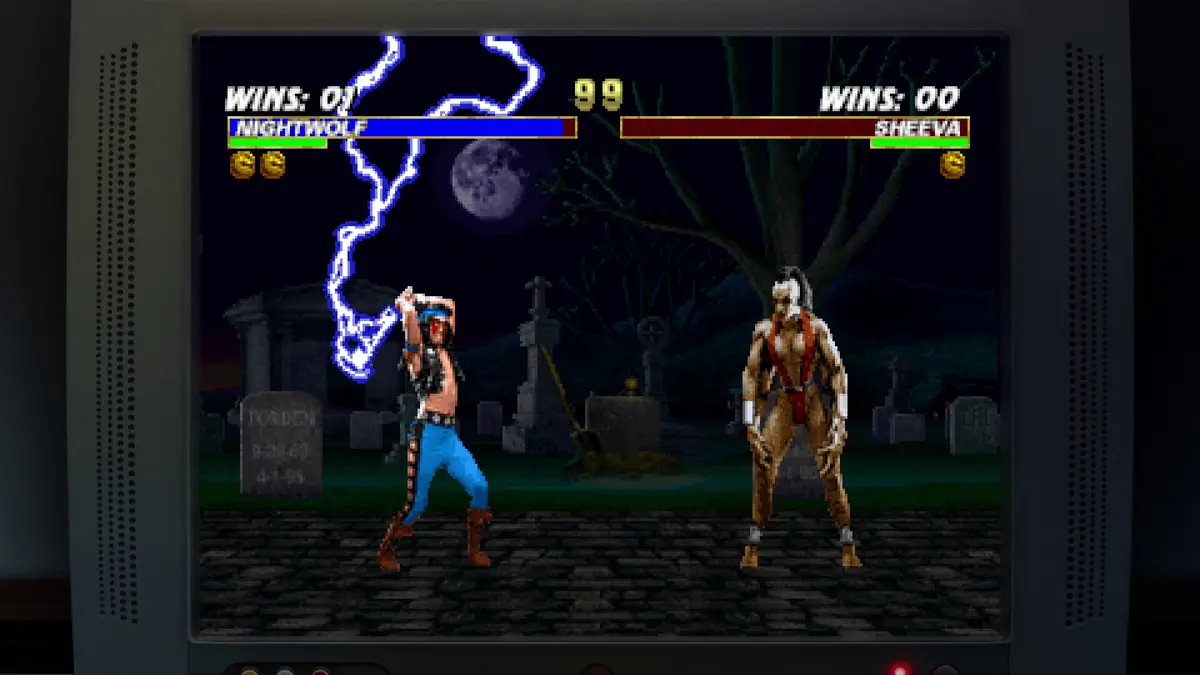
The delay people noticed at launch was not a bug in the emulation. Digital Eclipse published its own explanation, and it starts with the arcade hardware:
“the original Mortal Kombat arcade games ran at around 54 frames per second instead of the standard 60 FPS”
A display or a console running at a fixed 60 Hz has to reconcile that with the game’s own 54 FPS, and the usual result is repeated frames. Repeated frames add visible delay between your input and what happens on screen. That is the mechanism behind the complaint, and it explains why the arcade originals felt snappier on their original monitors than an emulated version does on a modern television.
What VRR changes
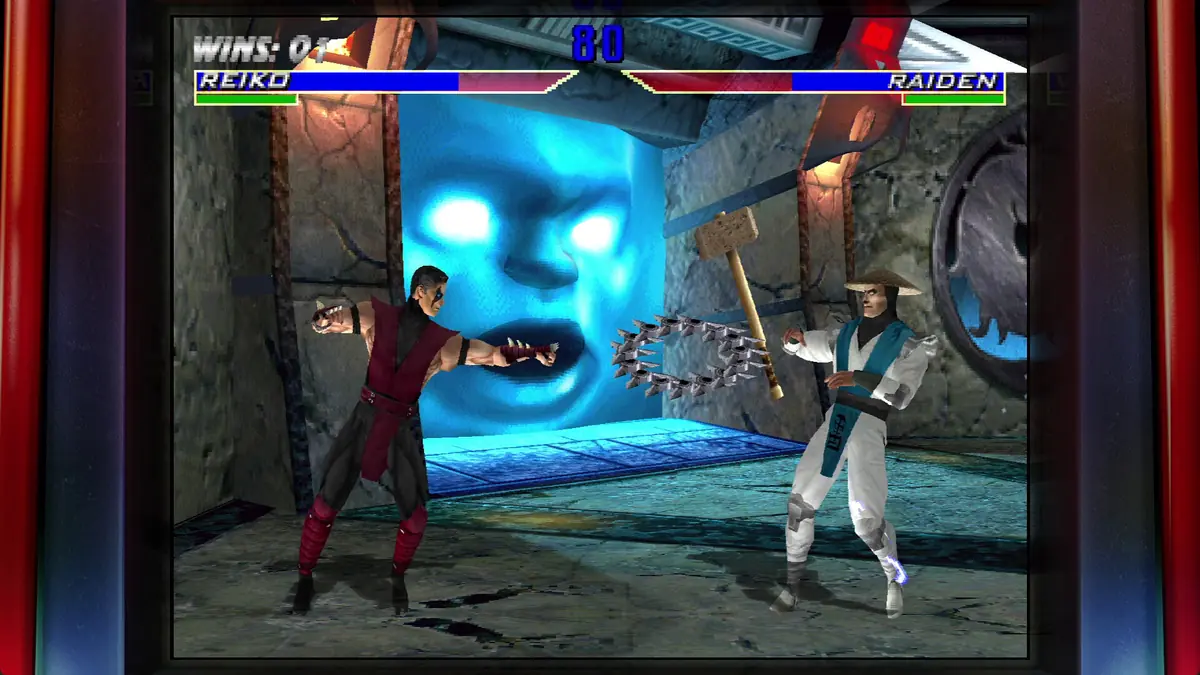
Variable Refresh Rate is the fix Digital Eclipse built support for, and the studio’s description of why it works is specific:
“When your system’s VRR option is turned on, we can sync the monitor to the non-standard frame rates that were used on the original arcade games, which was usually around 53 Hz.”
Instead of forcing the game toward 60 Hz, the display follows the game. Digital Eclipse also notes that with VRR enabled you “may also perceive an improvement in input latency” — the wording is deliberately cautious, because VRR removes a source of delay rather than eliminating delay entirely.
Turning VRR on
Three things have to support VRR at once: the console or PC, the display, and the cable between them. If any one of the three does not, the option will either be greyed out or will not take effect.
| Platform | Where to enable VRR |
|---|---|
| PlayStation 5 | Settings → Screen and Video → Video Output → VRR, set to Automatic. |
| Xbox Series X|S · Xbox One X|S | Settings → General → TV & display options → Video modes → Allow VRR. |
| PC (NVIDIA) | NVIDIA Control Panel → Display → Set up G-SYNC. |
| PC (AMD) | AMD Adrenalin → Gaming → Display → FreeSync. |
On a console, the cable matters: Digital Eclipse specifies HDMI 2.1 (Ultra High Speed), and on PS5 that cable is a requirement rather than a recommendation. On PC, DisplayPort 1.2a or newer also carries the signal.
Supported platforms
| Platform | VRR |
|---|---|
| PlayStation 5 | Yes |
| Xbox Series X|S | Yes |
| Xbox One X · Xbox One S | Yes |
| Xbox One (original) | No |
| PC | Yes, with a compatible display |
| Nintendo Switch 2 | Handheld mode only |
| Nintendo Switch (original) | Not listed as supported |
The original Xbox One being excluded is easy to miss, because the two mid-generation Xbox models above it do support VRR. Switch 2 support is also narrower than the platform list suggests: it applies in handheld mode, which is the mode that can vary its refresh rate.
Other things to try
Beyond VRR, the practical list is short, and it is worth separating what the developer has stated from what is general advice.
- Install the current update. Digital Eclipse shipped stability and performance work across the 2025 and 2026 updates, including fixes that were specific to the post-launch period. Running an older build reproduces problems that no longer exist.
- Check the display is not in a picture-processing mode. This is general advice rather than a developer statement: television and monitor modes that add motion smoothing or heavy processing introduce their own delay on top of whatever the game does. A game or low-latency mode is the usual recommendation.
- Use the wired or lowest-latency controller option available. Also general advice — controller connection adds to the chain but is not something Digital Eclipse has written about.
- Test in training mode. The training mode added in the 2026 updates lets you practise against a defined AI and swap sides, which makes it easier to judge whether a change helped.
The PC-specific side of this is on the PC guide, and the wider online picture is on the online play page.
Sources and review scope
- Digital Eclipse — a Mortal Kombat gamer’s guide to VRR — used for the original frame rates, the VRR explanation, the supported platforms, the cable requirements and the setting locations.
- Digital Eclipse — “Krossplay is here” — used to date VRR support to the April 2026 update.
- Digital Eclipse — Online Arcade update — used for the training mode additions.
The frame rate figures, the VRR behaviour, the platform list and the setting paths all come from Digital Eclipse’s own guide. Items in the final section are marked as general advice where they are not backed by a developer statement; nothing on this page is based on a personal measurement of the game.
Checked against linked Digital Eclipse updates, Atari and Steam store listings, and the in-game achievement list on October 13, 2026. Dynamic details such as player counts and patch state should be rechecked before publication.
Not independently play-tested. This is not a claim that every platform or game version was tested. Source review: Oct 13, 2026.
More Mortal Kombat Guides
 Mortal Kombat
Legacy Kollection online play and crossplay
How to switch on Krossplay, how rooms and Online Arcade work, and which of the included games support online matches.
 Mortal Kombat
Legacy Kollection on PC: requirements and settings
The official PC requirements, Steam Deck status, and the settings that matter for feel and performance.
 Mortal Kombat
Mortal Kombat: Legacy Kollection — is it fixed now?
What went wrong at launch, which fixes have shipped since, and what the game is like to play today.
 Mortal Kombat
Legacy Kollection: every game and version included
The full list of games and versions in Mortal Kombat: Legacy Kollection, and which build of each is worth playing.
 Mortal Kombat
Legacy Kollection editions compared: which to buy
Standard, Deluxe and Kollector's Edition side by side, plus the Switch 2 pricing and platform details that change the answer.
 Mortal Kombat
Legacy Kollection hidden characters and unlocks
Which version hides which fighter, the conditions the game itself states, and the official No More Secrets shortcut.