
over the hill Custom Livery Mods: Install and Create
Use the official mod.io workflow, understand local testing folders, and avoid confusing livery packs with gameplay mods.
Applies to: Windows launch build · official mod.io livery guide
Quick answer
To use a published livery, subscribe to it on the over the hill mod.io page, make sure it is enabled, then select it from the mechanic’s Livery Mods tab for the matching vehicle. To create one, paint the official UV template, export a PNG, reference it from a correctly named manifest.json, test the plain folder through LocalLiveries, then zip and upload the files to mod.io with the matching vehicle tag.
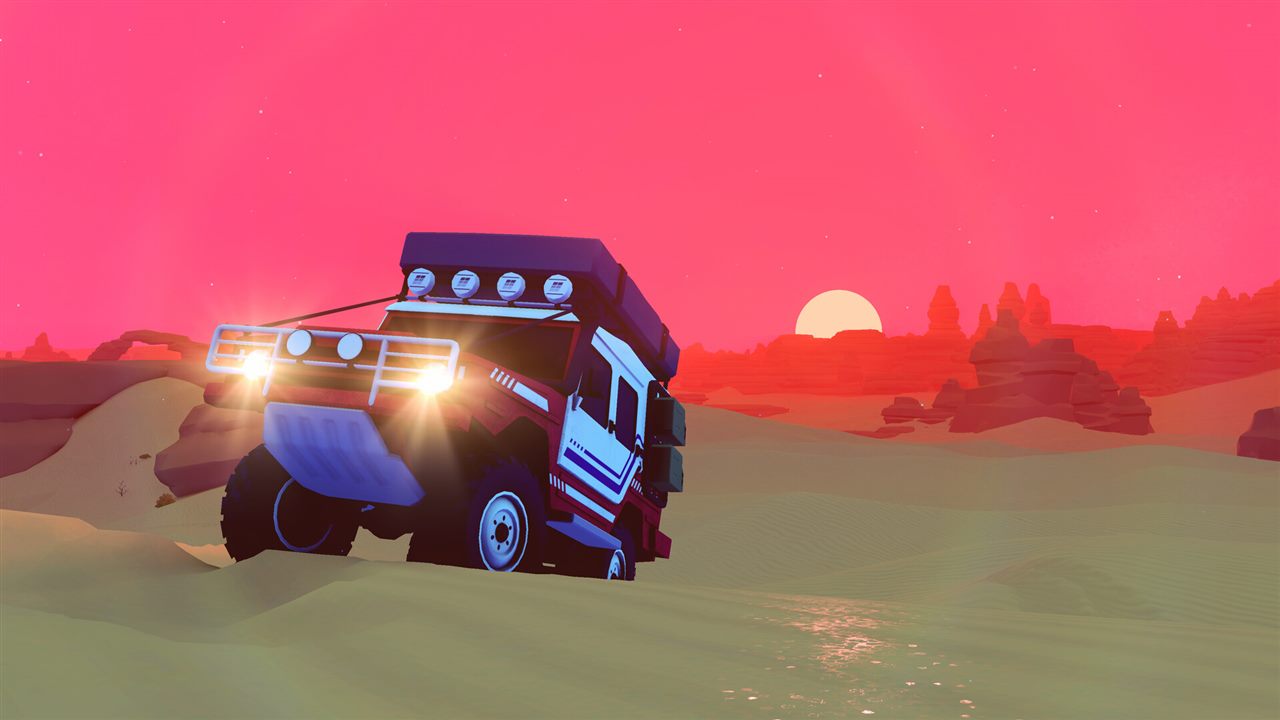
Install a published livery
- Open the over the hill page on mod.io and choose a livery made for your vehicle.
- Subscribe to the mod and confirm it is enabled.
- Launch the game and visit the garage or mechanic.
- Open the Livery Mods tab for the matching vehicle, then select the subscribed paint job.
A vehicle tag controls discoverability. A pack without the correct tag may work through a direct subscription but fail to appear under the expected vehicle filter.
Create a livery pack
The official workflow uses an external image editor; there is no initial in-game paint editor. Download the official UV template for the vehicle, paint on that layout, and export the texture as PNG.
my-livery/
├── manifest.json
├── trail_sunset.png
└── trail_sunset_preview.png
manifest.json must use that exact filename and must point to the correct vehicle identifier and PNG. The manifest’s car value is the machine-readable name without spaces, while the mod.io vehicle tag uses the human-readable name.
Test locally before uploading
Put each test pack in its own subfolder under the game’s LocalLiveries folder. Keep it as a plain folder rather than a zip. At the mechanic, choose Show local mods, select the livery, and use Refresh local mods after editing the PNG or manifest.
| Behavior | Local livery | mod.io livery |
|---|---|---|
| Packaging | Plain subfolder | Uploaded zip |
| Loading | Show local mods toggle | Subscribe and enable |
| Fast iteration | Refresh without restarting | Managed as a downloaded release |
| Multiplayer visibility | Only the local player sees it | Other players can temporarily download and see it |
Publish to mod.io
- Test the livery locally on the intended vehicle.
- Zip the manifest and referenced PNG files.
- Create the mod entry on mod.io and upload the zip.
- Add every matching human-readable vehicle tag.
- Subscribe to the published version and verify it through the normal in-game browser.
What livery support does not cover
Sources
- Official Livery Modding Guide on mod.io — pack structure, templates, local testing, publishing, tags, and multiplayer behavior.
- Official over the hill mod.io page — published livery browser.
- Pinned developer FAQ — original scope of livery mod support.
- Developer AMA — no initial in-game livery editor.
Checked October 19, 2026. File behavior is documented by the official guide; no third-party executable mod was installed or tested.
The file structure, PNG and manifest requirements, local preview behavior, vehicle tags, and mod.io subscription workflow come from the official livery modding guide on the game’s mod.io page. The scope is paint liveries only.
Not independently play-tested. This is not a claim that every platform or game version was tested. Source review: Oct 19, 2026.
More over the hill Guides
 over the hill
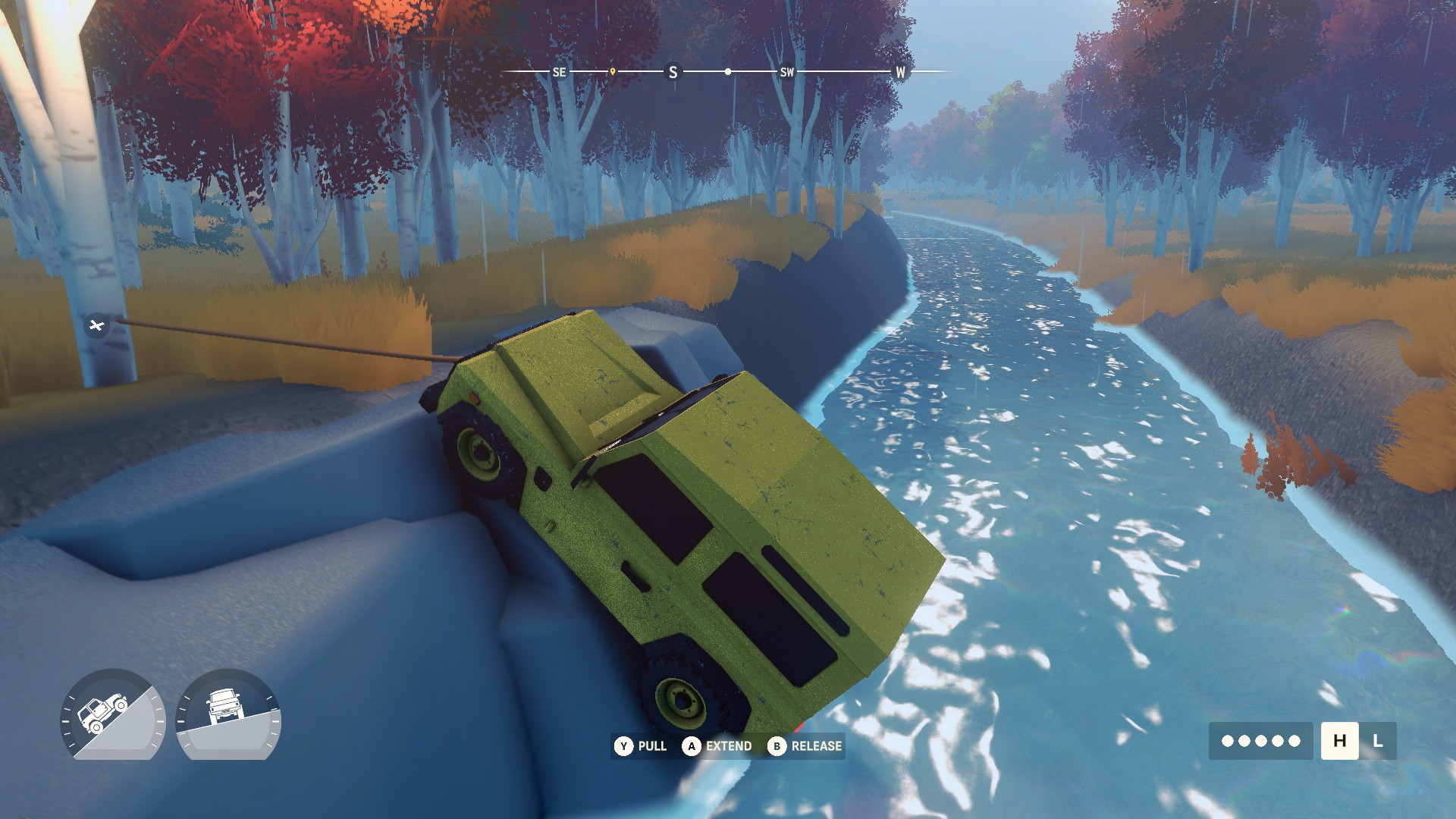
How to Find and Extract Meteorites in over the hill
Use the Meteorite Detector, connect the winch correctly, add direct co-op lines for larger rocks, and avoid relying on Demo-era fixed locations.
 over the hill
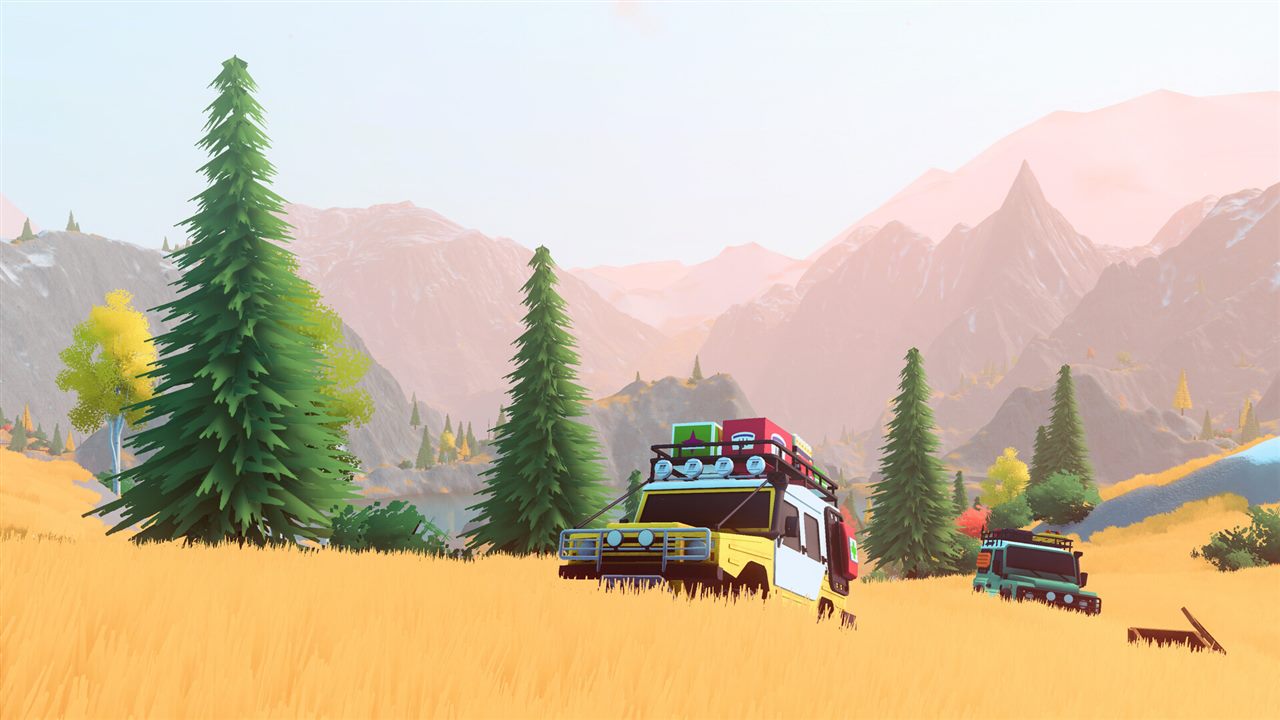
over the hill Platforms and Release Status
See what is available now on Steam, which console versions are planned for 2027, and what remains unconfirmed.
 over the hill
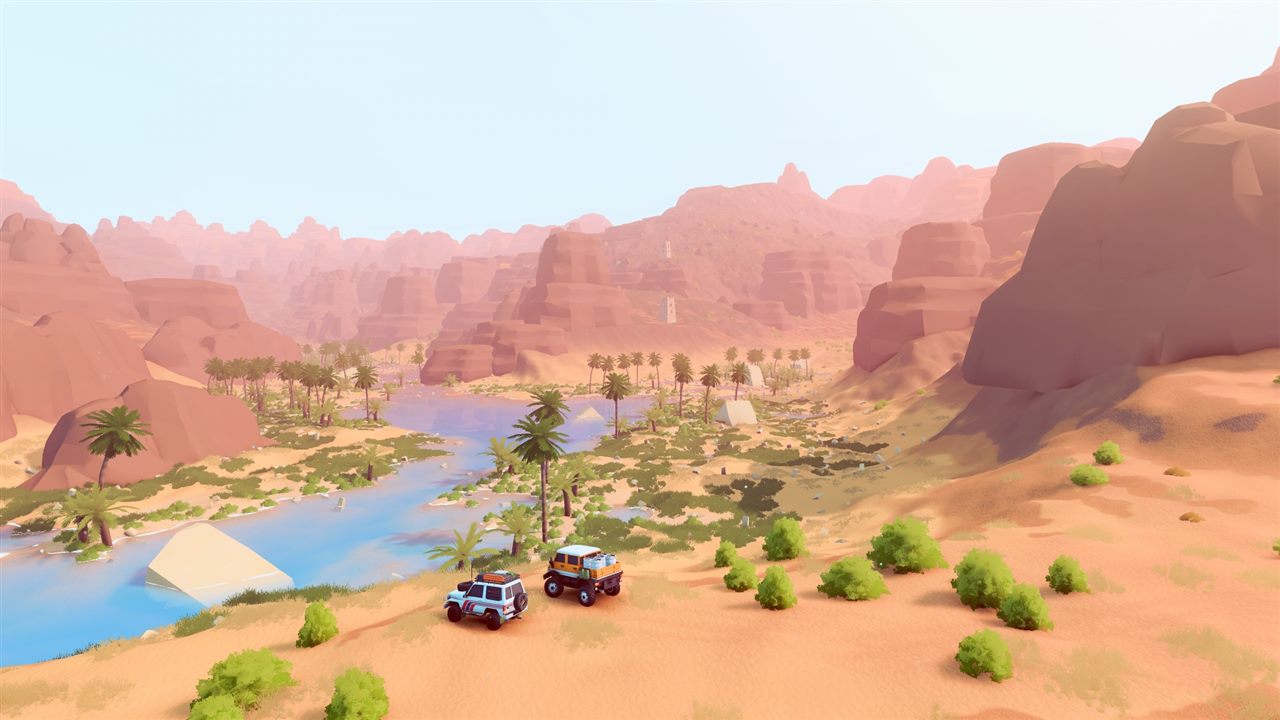
over the hill Multiplayer and Co-op Explained
Check the player limit, online and local co-op status, shared progression rules, and cross-play promise.
 over the hill
over the hill System Requirements and Steam Deck Status
Compare the published PC minimum with the current Steam Deck status and understand what has not been specified.
 over the hill
How Vehicle Unlocks Work in over the hill
Understand the confirmed unlock loop, upgrades, cosmetics, and why this page does not claim an unsupported complete vehicle list.
 over the hill
over the hill Maps and Regions: Canada and Algeria
Learn how the handcrafted area structure works, which regions are confirmed, and why old Demo maps are incomplete.